Thursday, May 02, 2013

Setting up Service Applications to run SharePoint 2013 Apps

If you have just installed SharePoint 2013 (and not run the Farm Configuration wizard that instantiates all Service Applications to save memory) and would like to try out some Apps, you will get an error during deployment from Visual Studio 2012.

To enable running of SharePoint 2013 Apps we need to setup the following Service Applications -

1. SharePoint, App Management Service
2. Microsoft SharePoint Foundation Subscription Settings Service

The App Management Service can be created from the Central Admin and does not need any special steps. Just create it like any other Service Application.

The Microsoft SharePoint Foundation Subscription Settings Service cannot be instantiated using the UI and can only be created using the following using PowerShell script -


Monday, April 29, 2013

Creating an App Domain for SharePoint Hosted Apps in SharePoint 2013

I just finished setting up a local development environment on my laptop (Guess the configuration? Corei3, 6GB RAM) and find that in spite of the low end configuration of the laptop, SharePoint 2013 runs decently (I have not configured any of the services such as Access Services, Excel Services etc. since my focus is only on doing some App Development).

One of the things that we have to do to make SharePoint 2013 run SharePoint-hosted Apps is to configure a   separate Domain in the DNS. Some people call it the AppDomain and it's misleading because we also have the concept of AppDomains in .NET. 

The first step is to create an instance each of the "App Management Service Application" and "SharePoint 2013 Foundation Subscription Settings Service Application". The App Management service can be created from Central Admin whereas the Subscription service can only be created using PowerShell. I will discuss both in my next post. But make sure that you have both the Service Applications instantiated and associated with your HostWeb (Site to which the Apps will be added).

For now let's look at the steps required to create an App Domain using the DNS Manager in Windows Server. I am running Windows Server 2008 R2 and screens might slightly differ in Windows Server 2012.

Step 1 : Open the DNS Manager

You can find it at Start > Administrative tools > DNS

Step 2 : Create a new Forward lookup Zone

Right click on the Node called "Forward Lookup Zones" and click on "New Zone..."


Step 3 : Select Zone Type

In Zone Type screen, choose "Primary Zone"


Step 4 : Under "Active Directory Zone Replication Scope" choose either the first or second option depending on your domain (For enterprise domains choose the first option, for standalone domain on a dev box choose the second option).


Step 5 : Enter the App Domain Name

This is the interesting part, If your parent domain is called MYDOMAIN.INT, then choose a name such as
APPS.MYDOMAIN.INT.

In my case my domain is called TRAINING.INT so i entered APPS.TRAINING.INT.

Remember, when you deploy your Apps, each App will run under an address such as -

http://app-fdfd323.apps.training.int/

There is also an option to prefix a string to the encoded domain value (more of that later).


Step 6 : Specify Dynamic Updates

Choose the last option "Do not allow dynamic updates"


Step 7 : Verify and Press Finish

Verify the details and press the "Finish" button to complete the Wizard. 


Step 1 - 7 will create a new Domain under which SharePoint Host Apps will run.

Step 8 : Create a wildcard CNAME entry for the App Domain and Point the CNAME to your SharePoint Server

The last step in the DNS Manager is to create a CNAME (Canonical Record) DNS Entry by first expanding the Forward Lookup Zones node, right clicking on the App Domain node and then choosing "New CNAME..". 

In the New Resource Record Dialog, enter * in the Alias name field and in the FQDN field, specify the Host Name of the SharePoint Server.

In my case, the SharePoint server is called "SHAREPOINT" and domain name is "TRAINING.INT" so I entered "SHAREPOINT.TRAINING.INT"

Now press OK to complete the creation of CNAME entry.


Well that's all you have to do in the DNS Manager, but we are not done yet. The final step is to configure APP URLs in the Central Admin. So open up the Central Administration Website and follow these steps - 

Step 1 : Open up Central Admin and Click on Apps

Now enter the App Domain name that we just created in DNS and optionally specify a prefix (If we specify a prefix such as "app" then the Apps will run under a URL such as http://app-fdfd43ed.apps.training.int/...)


If everything has been done correctly (and you have also created and associated the required Service Applications) the you're ready to start running SharePoint-hosted Apps now!


Thursday, October 04, 2012

Technet Resource Centers

Microsoft has done an excellent job of putting together reference and training material for SharePoint 2010 on Technet.

I was looking for something on BI with SP2010 and found this link -

http://technet.microsoft.com/en-us/sharepoint/ee692578.aspx

Going up one level brings us to the "SharePoint 2010 Resource Centers" on Technet -

http://technet.microsoft.com/en-us/sharepoint/ff465365

I wish these links could be some good and easy to remember subdomains or sub-sites on TechNet to make it easier to find.

Anyways i hope the resource centers links are good starting points for deep dives into specific topics.

Wednesday, August 08, 2012

Download MSDN Magazine for free

Folks, if you remember reading the print issues of MSDN Magazine and want to read them again, you can download all the older and latest editions in electronic format from here - http://msdn.microsoft.com/en-us/magazine/ee310108.aspx ( PDF format for latest ones and .CHM format for archived ones)

Happy reading!

SharePoint 2013 UI Improvements - Team Site Improvements

Writing this blog article, I have opened up SharePoint 2013 preview in another browser window to play around with and understand some of the new UI features. In this series, we'll be looking at the Team Site and in the next, the Publishing site (Site with Enterprise Features turned-on).

Firstly, the whole UI is modelled on the minimalist Office 2012 UI - flat, neat 'n' clean and with elements of the Windows 8 metro thrown in for good effect. The UI and Functionality are aimed at the typical office worker and have a very informal air about them.

The Team Site - The Office 365 preview of 2013 comes with a default teamsite that looks like this - 

Home page of TeamSite with different elements marked. Those marked with * are new (including the entire Action Menu)

Let's look at some of the improvements and changes in 2013 when compared to SharePoint 2010.

Hidden Ribbon - One of the changes that increases the screen real estate is the hidden ribbon. In 2010 the ribbon is visible by default and we had to hide it manually. Now the ribbon is hidden by default. To get the ribbon, we have to click the Menu item in the TopLink bar and to hide it just click on the Browse link.


Ribbon 'on-demand'


This is a cool feature, as it reduces the page clutter. Notice how the ribbon hides the Site Icon, Title and Search Box when it is visible without pushing them down.


"GettingStarted" WebPart - This is a webpart that diplays Metro style icons that display links to common tasks. On hovering over any icon the translucent overlay slides up to cover the entire icon. Looks like this webpart is not customizable directly.


The "GettingStarted" WebPart on the Teamsite Home Page


Editable Left Nav bar - The Left Nav bar (list of links on the left) are editable in-place now. Click the "Edit Links" button below the left nav and press the "+" button, which then pops up a dialog in which we can enter the title and url for the new link. All the editing's In-place and using a user-friendly modal dialog as show in the images below.


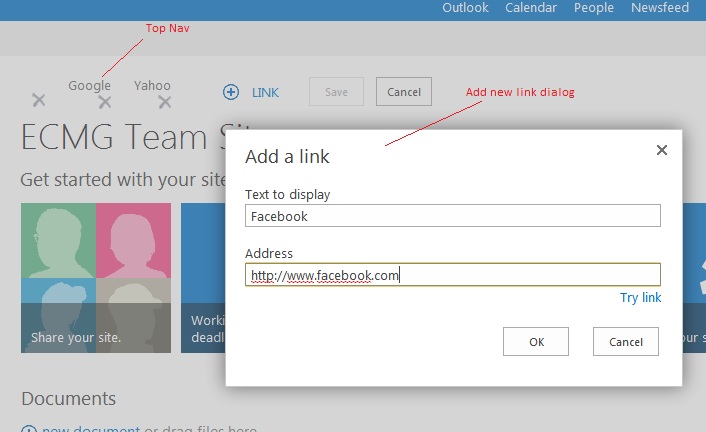
Editable Top Nav Bar - Similarly, the Top Nav bar too is editable in-place with similar UI as shown below-


All efforts have been made to enable the end-user to customize the navigation, in-place, without having to go to the settings page links. It makes the UI much more intuitive and user-friendly.

Document Library View UI Improvements - Now adding or uploading a new document to a document library does not require going to the ribbon buttons, instead, a context sensitive menu pops up on the page itself that has links for creation / upload.


Welcome Control and Site Action Menu changes - In this edition, 'all the action' has moved to the top left so that the user has all the clickable controls within close reach.


Those familiar with 2010 may already know the functionality behind these buttons, so we are just going to look at what's new! Well the coolest thing is the "Focus on Content" button - press this and the Left Nav, Site Icon, Site Title, Top Nav and Search box are hidden or shown (toggle button). When these are hidden, the PlaceHolderMain (Main area) expands to fill all the space below the ribbon. This allows the user to focus more on the content rather than getting distracted by the leftnav, icon and title and it gives more screen space to display content! With this rate, I think, the next version of SharePoint will have minimal.master as default masterpage :-).


All these new features are on just the home page. In the coming days as we'll explore more to find out the
improvements on the inside.


Wednesday, August 01, 2012

First look at SharePoint 2013 (Office 365 preview)

I just signed up for an Office 365 Preview account (Preview of SharePoint 2013 on the cloud). It's the same SharePoint that's available for download and install. Since the Hardware requirements are pretty heavy (24 GB RAM for SP2013 Preview), I'm not planning to install it locally anytime soon. For now, the online version is good to play with :-)

Here are a few screen shots from the preview site -

SharePoint Team Site (Home Page)


Document Library default View


Notice that the Ribbon does not remain visible all the time, it only appears if we click on the tab - one improvement since it used to take up lots of screen real estate!


Document Library "Library" ribbon


Public Site on Office 365

The all-new publishing site ?


This post is not meant to be a "What's New" article but just a preview of how the new 2013 is going to look for those who are curious and excited as me to find out all about the new SharePoint (2013). Of course, based on feedback, MSFT will surely make lots of changes, so the final version may be slightly different from the one we see now.

You can signup for a preview of the new Office 365 based on SharePoint 2013  here - http://www.microsoft.com/office/preview/en/try-office-preview

In the coming days, i'll dig deeper and blog about the cool new features that 2013 has!

SharePoint 2013 Preview available now!

Microsoft has released the preview versions of SharePoint 2013 recently. Here are the links to download -

Microsoft SharePoint 2013 preview - http://technet.microsoft.com/en-us/evalcenter/hh973397

Microsoft SharePoint 2013 Foundation preview - http://www.microsoft.com/en-us/download/details.aspx?id=30345

Microsoft SharePoint Designer 2013 - http://www.microsoft.com/en-us/download/details.aspx?id=30346

Hardware and Software Requirements for 2013 - http://technet.microsoft.com/library/cc262485(office.15)?ocid=fwlink :-(

SharePoint 2013 on the Cloud - http://community.office365.com/en-us/preview/default.aspx

If you are interested in trying out the release candidate and trial versions of the new Windows Server 2012 , SQL Server 2012 with Visual Studio 2012, you can follow these links -

Windows Server 2012 RC - http://technet.microsoft.com/en-us/evalcenter/hh670538.aspx

SQL Server 2012 Trial - http://www.microsoft.com/sqlserver/en/us/get-sql-server/try-it.aspx

Visual Studio 2012 RC - http://www.microsoft.com/visualstudio/11/en-us/downloads#vs

It's time to switch again!

Monday, June 25, 2012

Public site branding pains in Office 365 P1 Plan

I have been developing a public facing website on Office 365 P1 Plan (Small to medium size enterprises) where I've tried to customize the look and feel. Here are some things that you have to keep in mind when planning to run a public site on Plan P1 -


  • No Publishing Features - you heard it right. Publishing Feature is not installed on the P1 plan public site. Due to this the following limitations are encountered -

    1. No Publishing MasterPage - Cannot develop a Custom Publishing masterpage in your local and deploy to O365 P1. None of the Publishing controls or features work.

    2. No Popup menu for Top Nav - If you are planning for a Pop-up menu, forget it. TopNav made of    dynamic Popups driven via SiteMapProvider do not render at all.

    3. No Page Layouts - Cannot have Page Layouts based on custom Content Types since Publishing Feature is not available (so forget about having Field Controls on your site pages)

    3. In-Browser Editing only with root.master - If you want In-Browser content management (Page Edits) then you have to stick to the root.master page that is found in the root of the site (and not in the /_catalogs/masterpage folder).

    Any changes to root.master makes it Customized (different from the Site Definition) and this causes
    SharePoint to throw a correlation error. (I tried putting some simple Javascript and Jquery with script tags and it broke the masterpage!

Friday, December 02, 2011

Starting SharePoint Training 2010 in Chennai

I am starting SharePoint Training for those interested to learn or expand their SharePoint Knowledge. The plan is to have workshops on weekends (Sat & Sun) and learn everything right from the basics to the advanced stuff.

For a start, the course will be for 4 days spread over two weekends focusing on the following -

1. Intro, Concepts, Installation and Configuration
2. Basic End-user SharePoint
3. Branding using SharePoint Designer 2010
4. Development using Visual Studio 2010 (API, WebParts, Workflows)
5. Advanced and new features of SharePoint 2010
6. SharePoint 2010 Administration

Overall it will equip you with the necessary skills and knowledge to make a smooth transition from being an ASP.NET developer to become a SharePoint Developer.

A dedicated website - http://www.learnsharepoint.net is to be launched soon and it will have the details of the topics and also provide some resources.

In the meantime, if you are in Chennai and interested in learning SharePoint 2010 (both basics and advanced), please feel free to call me at - 9840651258 (Chennai, India).

In the future, I'll be offering Online Training as well.

Corporates can also contact me for their Training needs, but i am only available on weekends till December 2011.

Friday, June 10, 2011

Visual Studio 2010 SharePoint PowerTools & Silverlight WebParts

Microsoft has released the Visual Studio SharePoint 2010 Power tools extension which allows you to deploy a new kind of Visual WebPart as part of a Sandboxed solutions (though it has some limitations related to debugging, javascript etc.).

Another important extension is the Silverlight WebParts extension that now allow us to create Silverlight WebParts from Visual Studio 2010. There are two templates called "Silverlight WebPart" and "Silverlight Custom WebPart".

Here are the download links -

SharePoint 2010 Powertools for Visual Studio 2010- http://visualstudiogallery.msdn.microsoft.com/8e602a8c-6714-4549-9e95-f3700344b0d9/

SharePoint 2010 Silverlight WebParts templates for Visual Studio 2010-
http://visualstudiogallery.msdn.microsoft.com/e8360a85-58ca-42d1-8de0-e48a1ab071c7

Here's a nice video from Silverlight TV on the Silverlight WebParts -

Thursday, April 21, 2011

First look at Office 365 public beta - Part 1

Good news! Microsoft has just released Office 365 Online simultaneously for 38 markets (including India) in 17 languages!

There was an invite to the public beta of Microsoft Office 365 via email from MSFT today!. The registration process was simple where it asks to choose a subdomain  name - which is then prefixed to sharepoint.com - so if your subdomain is xyz then the address of your O365 public website will be xyz.sharepoint.com. You can of-course use your own domain name. After the registration process, it goes on and creates you email ids and websites in Exchange and SharePoint respectively.

So what's on Offer in Office 365?

  1. Office Web Apps - Word, Excel, PowerPoint, OneNote
  2. Email & Calendar (MS Exchange)
  3. Website and Collaboration (SharePoint public and Team site) 
  4. Instant Messenger (Lync)

    All this is protected with MS Forefront security
Once the registration process is over it redirects to a SharePoint Team Site. There is also a public site bundled, that shows up at the public url - http://xyz.sharepoint.com.

Quickly sign up for the public beta here - http://www.microsoft.com/en-in/office365/online-software.aspx

In the coming days, i am going to explore it more and write about the cool features, especially on the SharePoint side of things. Watch this space!

Monday, April 18, 2011

Visual Studio 2010 SP1 Released

The first service pack of Visual Studio 2010 - SP1 has been released. It can be downloaded from here -

Installer link -
http://www.microsoft.com/downloads/en/details.aspx?FamilyID=75568aa6-8107-475d-948a-ef22627e57a5

If you are looking for a single file download then download the .ISO image here which is 1.5GB in size.

ISO link -
http://go.microsoft.com/fwlink/?LinkId=210710

The list of fixes in SP1 are listed here - http://support.microsoft.com/kb/983509

** Also released is the Team Foundation Server (TFS) 2010 SP1 that can be downloaded here -

http://www.microsoft.com/downloads/en/details.aspx?FamilyID=43d9f36a-6347-4ac4-86b6-cee4cd54b5d2&displaylang=en


Sunday, April 17, 2011

InfoPath Task Edit Form for SharePoint Workflows

When developing custom Task Edit forms for SharePoint workflows, most of the times, first timers will find that the form does not show up on clicking the task link in the Tasks list (or email).

I have been developing a workflow with custom task edit forms using InfoPath 2010 and find that every time the task link is clicked we get the "specified file cannot be found" error. This means that SharePoint is not able to find the ".xsn" file. But that's not the case always, the same error shows up for other reasons too, so it's actually a misleading error message. People spend days trying to arrive at a fix and are left totally clueless by this error message.

Here's a checklist of thing you need to ensure in your workflow project as well as the task edit InfoPath form to get a custom Task Form (InfoPath) working -

1. Create a module for the InfoPath form in your Visual Studio 2010 SP Workflow project and then publish your Task Edit Form into this location -


2. Ensure that the Elements.xml points to the TaskEdit InfoPath .xsn correctly -


3. When publishing the original Task Edit form to the Project module folder, blank out the text box from the second screen of the publishing wizard.


4. Make sure that you have the Workflow Elements.xml looks like the one below and has the correct Task form URN. Your file may differ slightly depending on the number and type of forms.


      List
        urn:schemas-microsoft-com:office:infopath:MyTaskForm:-myXSD-2011-04-12T20-27-46
 _layouts/WrkStat.aspx


5. Ensure that your Workflow feature looks like this -


If the form still does not show up then sign the form, set full trust and publish. And after all the toil, if it still does not work, then check for typos.

Saturday, April 16, 2011

Silverlight 5 beta announced

Microsoft has announced yet another release of Silverlight. Beta of Silverlight 5 is now available for download here. Top features in SL5 beta are as follows -
  • XAML Debugging with breakpoints for binding debugging
  • Implicit data templates for easy UI reuse
  • Double (and multi) click support
  • GPU-accelerated XNA-compatible 3D and immediate-mode 2D API
  • Low-latency sound effects and WAV support
  • Real operating system windows and multi-display support
  • Significant performance improvements, fixes and much more
Here's the first of the Launch event videos -


Download SilverLight 5 beta from here - http://go.microsoft.com/fwlink/?LinkID=214309

Saturday, April 09, 2011

Setting up SharePoint on Oracle (Sun) VirtualBox


I'm trying to setup a MOSS 2007 Virtual machine on my laptop. After downloading VirtualBox from Oracle which is a very good Virtualization Platform, I am going to install it. The latest version of VirtualBox is available at - http://www.virtualbox.org/wiki/Downloads

Top features of VirtualBox include - 64-bit OS Support, snapshots, dynamically growing VHD images and great display.

See full feature list here.

Coming to SharePoint - Why MOSS 2007 now? because there are still lots of projects based on MOSS 2007 and WSS 3.0.

I find VirtualBox much better (OpenSource and Free) and easy to use than MS VPC (only 32-bit) or VMWare Workstation (paid).

The configuration that i'm trying to create will be 2GB RAM, 20GB Dynamic VHD, Windows 2003 Standard to run MOSS 2007 SP2.

So here's how it's done -

1. Install Oracle Sun VirtualBox - very easy and nothing much to talk about.

2. Fire-up VirtualBox and click on the "New" button in the toolbar.


3. The "New VM Wizard will start"


4. Choose the name of the VM and OS type. A wide range of 32 and 64 bit flavors of Windows are supported (apart from others).   I am choosing Windows 2003 32-bit to install MOSS 2007.


5. Allocate Memory for the VM. In my case it's 2GB out of a total of 6GB.


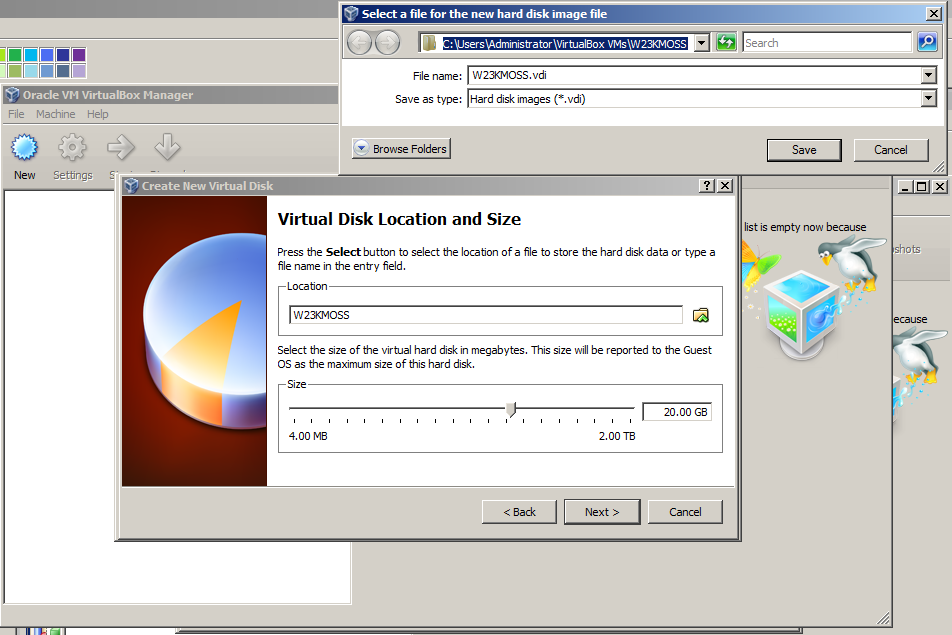
6. Create a new VHD (Virtual Hard Disk). The good thing about VirtualBox is that it supports both expanding and fixed size VHD images. Choosing dynamically growing storage will help you save space on your disk.


Following this the VHD sub-wizard will launch.

7. Click on next


8. Choose "Dynamically expanding storage" and then the size of the VHD -


9. Choose the location where you'd like to store the VHD image. Ideally it should be on an external HDD that
connects to the desktop/laptop via eSATA or a separate internal HDD. I have neither so the image goes
into my regular HDD.


and then press "Finish" in the next screen.


Well that's all there is to it. The VM is ready for OS installation. VirtualBox then shows
the summary of the VM. To power on the VM, press the "Start ->" button.

What follows next are the usual OS installation steps. Once you have installed the OS,
SharePoint can be installed.

I'm not enlisting all those steps here so here are some screenshots of that sequence.


VitualBox automatically detects the DVR-ROM on the computer and treats it as a device on the VM


Now it boots up from the DVD-ROM


Windows 2003 Setup screen -


After install is done i start Task manager to have a peek at the performance. It has by default allocated only one virtual processor. You can change this to multiple depending on your hardware. Allocating too many virtual processors will slow down your computer.


After base installation on Windows 2003, the VHD size is just 1.6GB which can be easily copied on to a Pen Drive.


At this point it is a good idea to take your first snapshot of the VM. I went on to install SharePoint pre-requisites and MOSS 2007 Enterprise on top of this setup and now have a  MOSS 2007 VM on Oracle VirtualBox.

The performance is very good - VB fires up in just under 5 seconds and you have SharePoint up and running!

Monday, April 04, 2011

Renaming a SharePoint 2010 Server (Standalone)

Before my Training sessions, I setup the lab by Installing & Configuring SharePoint 2010 and all other tools on one physical machine and then we ghost the Hard Disk image to the rest of the machines. Once that's done, we power on the boxes and find that all of them report 'duplicate name on the network' error. So the Network admin then renames the boxes and SharePoint no longer works.

For MOSS 2007, we had some stsadm commands which used to do the trick. Since, powershell is available now, we can use PowerShell cmdlets for SharePoint.

Here's how a SharePoint 2010 server rename is done -

1. Fire up the SharePoint 2010 Management Shell (recommended to run as Administrator)

2. Run the following Powershell command -


Rename-SPServer [-Identity] <originalservername> -Name <newservername>


where <originalservername> is the current name of the Server and <newservername> is the new name of the Server.

For example, if your current server is called MACHINE01 and new server name will be BOX01 then you can write -

Rename-SPServer -Identity MACHINE01 -Name BOX01

3. Run IISRESET / noforce

4. Rename the Server and restart the machine. Start the management shell again.

4. Modify alternate access mappings for Central Admin using PowerShell -

Although the server has been renamed, the Sites will be having the old server name in their URLs so one has to change the Alternate access mappings for Central Admin and other sites. This can be done using the cmdlet called Set-SPAlternateURL as shown below -


Set-SPAlternateURL -Identity <old URL to the central admin site> -Url <new URL to the central admin>


For example if the old central admin site was at - http://machine01:8080 and the new server name is BOX01 then you will write -

Set-SPAlternateURL -Identity http://machine01:8080 -Url http://box01:8080

Now you will be able to get into the Central Admin site. You can then go and change the alternate access mappings for the rest of the sites through the Central Admin site instead of doing via PowerShell.

Here's the official Technet page for this topic.

Note: Never use the _ (underscore) in your host names because it causes problems with Cookies and your SharePoint sites will not work. Also avoid the - (hyphen) as far as possible in host names.

Microsoft Launches WebMatrix

I have been a Macromedia Dreamweaver (now Adobe Dreamweaver) user ever since its version 1 launch in 1997. My experience with the current version - CS5 has not been pleasant. It constantly crahses and sends out lots of data back to Adobe (WireSharked it - but it uses https, so no way to find out what it's really sending back.)

Over the last few years, I have been working with SharePoint Designer 2007 & now 2010 version - in which MSFT has removed the ability to author non-SharePoint sites - it's a very clever move.
So out goes the Web authoring stuff from SPD2010 and..guess what?... in comes WebMatrix - the latest and greatest non-SharePoint Web-Development tool. The icing on the cake is that - IT'S ABSOLUTELY FREE!

I did hear about a month ago about it's launch, but only now I'm downloading it (as i'm writing this post).

Well, to give a brief idea -

1. It's a Web Development Tool like Adobe Dreamweaver or Net Objects Fusion.

2. It allows plain web authoring, authoring ASP.NET/MVC sites and..

3. Surprisingly it provides authoring WordPress, Joomla, Drupal etc. which are OpenSource CMS!! (very clever indeed)

We'll that's all i know right now..i'm going to find out more after I install it.

You can learn more about WebMatrix and also download it from here -

http://www.microsoft.com/web/webmatrix/

If it's really good, i'm saying bye bye to everything Adobe and will use WebMatrix. I have already removed Acrobat Reader and instead use PDF-XChange Viewer from Tracker Software. Try it..it's very fast and light-weight - miles ahead of the bloated Acrobat.

Thursday, February 10, 2011

Long time no blogging

It's been ages since i have not blogged here, meanwhile the winds of change have swept through SharePointland and most residents, including myself, have switched to 2010. SharePoint 2010 is here with Visual Studio 2010, InfoPath 2010 and Office 2010.

Over the last year i have had the good fortune of getting to work on all kinds of SharePoint projects involving InfoPath 2010 (lots of SharePoint Workflows), Visio 2010 and TFS 2010 as well.

My friend, Arno Nel (SharePoint MVP and founder of SharePointMagazine.net has given me a blog site on
http://vijay.spoint.me where i will be blogging about SharePoint 2010.

So let's hope that I find enough time and stuff to blog about SharePoint 2010 and all the new exciting stuff that's happenning in the Microsoft space!

Using Recoil with SPFx Try out the latest alternative to Redux with SPFx When developing with Redux or MobX, we have ha...