Sunday, April 17, 2011

InfoPath Task Edit Form for SharePoint Workflows

When developing custom Task Edit forms for SharePoint workflows, most of the times, first timers will find that the form does not show up on clicking the task link in the Tasks list (or email).

I have been developing a workflow with custom task edit forms using InfoPath 2010 and find that every time the task link is clicked we get the "specified file cannot be found" error. This means that SharePoint is not able to find the ".xsn" file. But that's not the case always, the same error shows up for other reasons too, so it's actually a misleading error message. People spend days trying to arrive at a fix and are left totally clueless by this error message.

Here's a checklist of thing you need to ensure in your workflow project as well as the task edit InfoPath form to get a custom Task Form (InfoPath) working -

1. Create a module for the InfoPath form in your Visual Studio 2010 SP Workflow project and then publish your Task Edit Form into this location -


2. Ensure that the Elements.xml points to the TaskEdit InfoPath .xsn correctly -


3. When publishing the original Task Edit form to the Project module folder, blank out the text box from the second screen of the publishing wizard.


4. Make sure that you have the Workflow Elements.xml looks like the one below and has the correct Task form URN. Your file may differ slightly depending on the number and type of forms.


      List
        urn:schemas-microsoft-com:office:infopath:MyTaskForm:-myXSD-2011-04-12T20-27-46
 _layouts/WrkStat.aspx


5. Ensure that your Workflow feature looks like this -


If the form still does not show up then sign the form, set full trust and publish. And after all the toil, if it still does not work, then check for typos.

Saturday, April 16, 2011

Silverlight 5 beta announced

Microsoft has announced yet another release of Silverlight. Beta of Silverlight 5 is now available for download here. Top features in SL5 beta are as follows -
  • XAML Debugging with breakpoints for binding debugging
  • Implicit data templates for easy UI reuse
  • Double (and multi) click support
  • GPU-accelerated XNA-compatible 3D and immediate-mode 2D API
  • Low-latency sound effects and WAV support
  • Real operating system windows and multi-display support
  • Significant performance improvements, fixes and much more
Here's the first of the Launch event videos -


Download SilverLight 5 beta from here - http://go.microsoft.com/fwlink/?LinkID=214309

Saturday, April 09, 2011

Setting up SharePoint on Oracle (Sun) VirtualBox


I'm trying to setup a MOSS 2007 Virtual machine on my laptop. After downloading VirtualBox from Oracle which is a very good Virtualization Platform, I am going to install it. The latest version of VirtualBox is available at - http://www.virtualbox.org/wiki/Downloads

Top features of VirtualBox include - 64-bit OS Support, snapshots, dynamically growing VHD images and great display.

See full feature list here.

Coming to SharePoint - Why MOSS 2007 now? because there are still lots of projects based on MOSS 2007 and WSS 3.0.

I find VirtualBox much better (OpenSource and Free) and easy to use than MS VPC (only 32-bit) or VMWare Workstation (paid).

The configuration that i'm trying to create will be 2GB RAM, 20GB Dynamic VHD, Windows 2003 Standard to run MOSS 2007 SP2.

So here's how it's done -

1. Install Oracle Sun VirtualBox - very easy and nothing much to talk about.

2. Fire-up VirtualBox and click on the "New" button in the toolbar.


3. The "New VM Wizard will start"


4. Choose the name of the VM and OS type. A wide range of 32 and 64 bit flavors of Windows are supported (apart from others).   I am choosing Windows 2003 32-bit to install MOSS 2007.


5. Allocate Memory for the VM. In my case it's 2GB out of a total of 6GB.


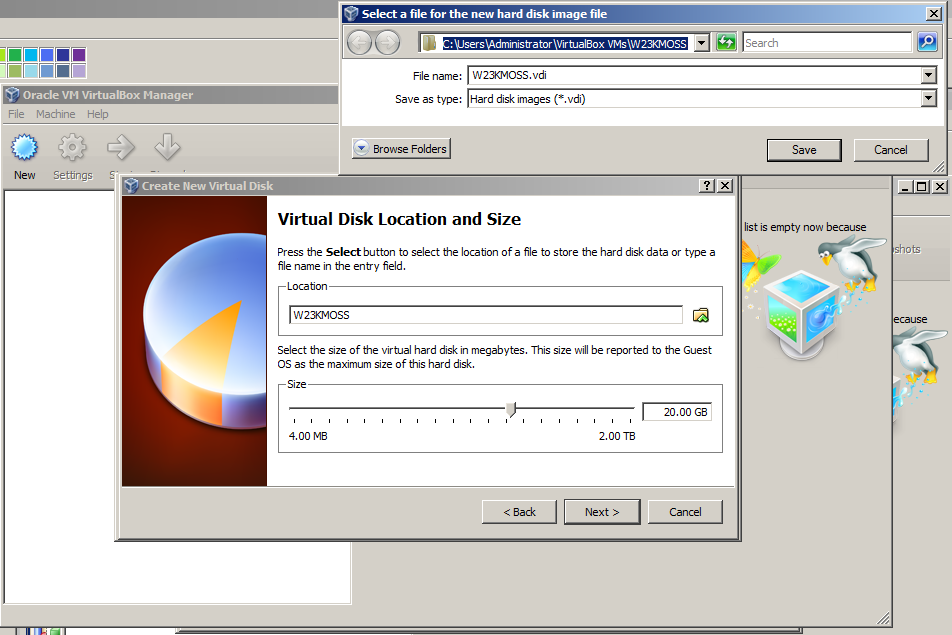
6. Create a new VHD (Virtual Hard Disk). The good thing about VirtualBox is that it supports both expanding and fixed size VHD images. Choosing dynamically growing storage will help you save space on your disk.


Following this the VHD sub-wizard will launch.

7. Click on next


8. Choose "Dynamically expanding storage" and then the size of the VHD -


9. Choose the location where you'd like to store the VHD image. Ideally it should be on an external HDD that
connects to the desktop/laptop via eSATA or a separate internal HDD. I have neither so the image goes
into my regular HDD.


and then press "Finish" in the next screen.


Well that's all there is to it. The VM is ready for OS installation. VirtualBox then shows
the summary of the VM. To power on the VM, press the "Start ->" button.

What follows next are the usual OS installation steps. Once you have installed the OS,
SharePoint can be installed.

I'm not enlisting all those steps here so here are some screenshots of that sequence.


VitualBox automatically detects the DVR-ROM on the computer and treats it as a device on the VM


Now it boots up from the DVD-ROM


Windows 2003 Setup screen -


After install is done i start Task manager to have a peek at the performance. It has by default allocated only one virtual processor. You can change this to multiple depending on your hardware. Allocating too many virtual processors will slow down your computer.


After base installation on Windows 2003, the VHD size is just 1.6GB which can be easily copied on to a Pen Drive.


At this point it is a good idea to take your first snapshot of the VM. I went on to install SharePoint pre-requisites and MOSS 2007 Enterprise on top of this setup and now have a  MOSS 2007 VM on Oracle VirtualBox.

The performance is very good - VB fires up in just under 5 seconds and you have SharePoint up and running!

Monday, April 04, 2011

Renaming a SharePoint 2010 Server (Standalone)

Before my Training sessions, I setup the lab by Installing & Configuring SharePoint 2010 and all other tools on one physical machine and then we ghost the Hard Disk image to the rest of the machines. Once that's done, we power on the boxes and find that all of them report 'duplicate name on the network' error. So the Network admin then renames the boxes and SharePoint no longer works.

For MOSS 2007, we had some stsadm commands which used to do the trick. Since, powershell is available now, we can use PowerShell cmdlets for SharePoint.

Here's how a SharePoint 2010 server rename is done -

1. Fire up the SharePoint 2010 Management Shell (recommended to run as Administrator)

2. Run the following Powershell command -


Rename-SPServer [-Identity] <originalservername> -Name <newservername>


where <originalservername> is the current name of the Server and <newservername> is the new name of the Server.

For example, if your current server is called MACHINE01 and new server name will be BOX01 then you can write -

Rename-SPServer -Identity MACHINE01 -Name BOX01

3. Run IISRESET / noforce

4. Rename the Server and restart the machine. Start the management shell again.

4. Modify alternate access mappings for Central Admin using PowerShell -

Although the server has been renamed, the Sites will be having the old server name in their URLs so one has to change the Alternate access mappings for Central Admin and other sites. This can be done using the cmdlet called Set-SPAlternateURL as shown below -


Set-SPAlternateURL -Identity <old URL to the central admin site> -Url <new URL to the central admin>


For example if the old central admin site was at - http://machine01:8080 and the new server name is BOX01 then you will write -

Set-SPAlternateURL -Identity http://machine01:8080 -Url http://box01:8080

Now you will be able to get into the Central Admin site. You can then go and change the alternate access mappings for the rest of the sites through the Central Admin site instead of doing via PowerShell.

Here's the official Technet page for this topic.

Note: Never use the _ (underscore) in your host names because it causes problems with Cookies and your SharePoint sites will not work. Also avoid the - (hyphen) as far as possible in host names.

Microsoft Launches WebMatrix

I have been a Macromedia Dreamweaver (now Adobe Dreamweaver) user ever since its version 1 launch in 1997. My experience with the current version - CS5 has not been pleasant. It constantly crahses and sends out lots of data back to Adobe (WireSharked it - but it uses https, so no way to find out what it's really sending back.)

Over the last few years, I have been working with SharePoint Designer 2007 & now 2010 version - in which MSFT has removed the ability to author non-SharePoint sites - it's a very clever move.
So out goes the Web authoring stuff from SPD2010 and..guess what?... in comes WebMatrix - the latest and greatest non-SharePoint Web-Development tool. The icing on the cake is that - IT'S ABSOLUTELY FREE!

I did hear about a month ago about it's launch, but only now I'm downloading it (as i'm writing this post).

Well, to give a brief idea -

1. It's a Web Development Tool like Adobe Dreamweaver or Net Objects Fusion.

2. It allows plain web authoring, authoring ASP.NET/MVC sites and..

3. Surprisingly it provides authoring WordPress, Joomla, Drupal etc. which are OpenSource CMS!! (very clever indeed)

We'll that's all i know right now..i'm going to find out more after I install it.

You can learn more about WebMatrix and also download it from here -

http://www.microsoft.com/web/webmatrix/

If it's really good, i'm saying bye bye to everything Adobe and will use WebMatrix. I have already removed Acrobat Reader and instead use PDF-XChange Viewer from Tracker Software. Try it..it's very fast and light-weight - miles ahead of the bloated Acrobat.

Thursday, February 10, 2011

Long time no blogging

It's been ages since i have not blogged here, meanwhile the winds of change have swept through SharePointland and most residents, including myself, have switched to 2010. SharePoint 2010 is here with Visual Studio 2010, InfoPath 2010 and Office 2010.

Over the last year i have had the good fortune of getting to work on all kinds of SharePoint projects involving InfoPath 2010 (lots of SharePoint Workflows), Visio 2010 and TFS 2010 as well.

My friend, Arno Nel (SharePoint MVP and founder of SharePointMagazine.net has given me a blog site on
http://vijay.spoint.me where i will be blogging about SharePoint 2010.

So let's hope that I find enough time and stuff to blog about SharePoint 2010 and all the new exciting stuff that's happenning in the Microsoft space!

Thursday, November 12, 2009

Minimal Site Def for SharePoint 2007 / WSS 3.0

If you are looking for a plain Site Definition to start your project, then here it is. I have created a WSPBuilder project in Visual Studio 2008 (Targeting .NET Framework 2.0). The Sitedef is based on TeamSite but does not include the usual lists and has only the SharedDocumets library included.

For most WSS or SharePoint 2007 based web application projects where one does not need Publishing features, this Sitedef can be used as the base to start with.

To further reduce the clutter, only one configuration and one module are included. You can easily rename the template to your project name by changing the following -

1. In ONET.XML
Change the Title to your project Title (for example - "My Project"). This need not be same as the Site Definition name and can have spaces.

2. webtempPlainSite.xml file can be renamed to webtemp.xml

3. Under SiteTemplates folder, "PlainSite" folder can be renamed to the name of your project. This will be the new name of the Site Definition. (for example "MyProject")

4. In the renamed webtemp.xml change the name attribute to reflect the new Site definition name (folder name)

You can download the Minimal SiteDef in .zip format from here.

Friday, June 26, 2009

MOSS 2007 SP2 Update available

MOSS 2007 SP2 Update is now available. Installing this update will fix the 'expiry bug' that became a big showstopper in SP2. You can read this story at the Official Sharepoint Team blog or read this KB article which provides the download link -

KB article is here - http://support.microsoft.com/kb/971620

Monday, June 08, 2009

Sunday, May 31, 2009

Show-Stopper bug in MOSS 2007 SP2

A bug in the recently released SP2 of MOSS 2007 causes a licensed installtion to 'expire' after 180 days as if it were a trial version. Once this happens users cannot access the sharepoint sites running on the affected server.

More details are here -


It also applies to Search Server 2008, Project Server 2007 and Forms Server 2007.

The fix for this, right now, is to run "Convert License type" in the Operations tab in the Central Admin.

MSFT is currently working on a Hotfix for this that should be out very soon!

SharePoint.Microsoft.com - Makeover

http://sharepoint.microsoft.com (microsoft.com/sharepoint) has got a total makeover with Silverlight navigation and javascript  divs. Usability of the site is amazing and the information is arranged very well.

The official announcement was made on May 20 and you can find the post here - 


Great Job!

SKU Rocks

My dearest friend and ex-colleague Senthil Kulandai runs his own SharePoint blog at - http://skurocks.wordpress.com/.

He's a prolific blogger, master programmer and a great guy! You can find lots of useful articles and tit-bits on SharePoint & .NET there.

Keep rocking SKU!

Monday, March 24, 2008

MOSS 2007 Stand-alone Training Kit

Microsoft has released a Free MOSS 2007 Training Kit that includes Tutorials, Videos, Code-samples and more.

This is the description posted on the download page -
The Microsoft Office SharePoint Server 2007 Training Standalone Edition is designed to help you learn how to use the features of Microsoft Office SharePoint Server. The Training topics lead you step-by-step through beginning to advanced features, including Collaboration, Business Processes and Forms, Portals and Personalization, Search, Business Intelligence and Enterprise Content Management

The Stand-alone version of the Kit can be downloaded here -
http://www.microsoft.com/downloads/details.aspx?FamilyId=7BB3A2A3-6A9F-49F4-84E8-FF3FB71046DF&displaylang=en

There is also a server version of the same, which allows the kit to be hosted on a website.

Saturday, March 22, 2008

Microsoft Search Server 2008

Microsoft has recently launched the Microsoft Search Server 2008 and Microsoft Search Server 2008 Express { Free Edition} . This product enables enterprises to implement enterprise wide search.
So if an organization need just search then this is the product to go for. There is no need to buy Office Server 2007 Enterprise which originally came out with the search functionality.

More about the features here -
http://www.microsoft.com/enterprisesearch/serverproducts/searchserverexpress/features.aspx#si

Quite a move from Microsoft - it sure does know how to create products out of features and functionality - nice lesson in innvoation and selling.

Microsoft DreamSpark

Microsoft is giving out its latest Developer tool to students free-of-cost to encourage them to take up programming at a young age and to initiate them into the cutting edge technologies as well.
The download bundle includes -
Microsoft Visual Studio 2008 Professional Edition
Microsoft Xpression Studio
Microsoft Windows Server 2008
XNA Game Studio

Currently it is available only in United States, the United Kingdom, Canada, China, Germany, France, Finland, Spain, Sweden, Switzerland and Belgium. Soon other countries will be added. We being one of the countries with the largest talent pool in IT will benefit immensly from this program.

As they say - "good programmers start early" lets hope our youngsters get started on these cutting edge tools and go on to become talented programmers and architects.

Any student can participate in the DreamSpark program and download the tools here -
https://downloads.channel8.msdn.com/

SharePoint, WSS and Office Screencasts

I found some nice screen-casts for SharePoint 2007, WSS 3.0 and Office 2007 Screencasts here :-
http://msdn2.microsoft.com/en-us/office/aa905382.aspx

The same are also having links here -
http://www.microsoft.com/downloads/details.aspx?FamilyID=BD5C77B0-F556-4136-8730-1D7FEEAE0A42&displaylang=en

Most of these are by Ted Pattison of Ted Patisson Group - http://www.tedpattison.net/

Screencasts are a fun-way to learn - Happy Learning

Thursday, March 20, 2008

More than 200 Case Studies on MOSS 2007

I was just browsing the Case-studies site and found that it has more than 200 case studies on MOSS 2007 at this link -
http://www.microsoft.com/casestudies/search.aspx?ProTaxID=1902

You can also find a small list of TOP 17 MOSS 2007 Case studies on the SharePoint Products and Technology Team Blog -
http://blogs.msdn.com/sharepoint/archive/2007/05/03/top-17-case-studies-for-microsoft-office-sharepoint-server-2007-and-several-new-moss-based-web-sites.aspx

If you'd like to search for Industry specific case-studies then please filter based on industry on the Microsoft Case-studies website (Link is given in the previous post).

Using Recoil with SPFx Try out the latest alternative to Redux with SPFx When developing with Redux or MobX, we have ha...